Keep the computer in the playback path
The desktop app hosts the library and sends playback instructions to the receiver. The TV then fetches the media from the computer. A phone can browse the library or act as a remote, but it does not take over serving the computer’s files.
Keep the computer awake, Reelloft running and its source folder available. A wired computer and a Wi-Fi receiver can share a local network; the important condition is that the devices can reach each other. A guest network or isolated network segment can prevent that even when the devices use the same router.
This guide covers your computer’s local files. Reelloft does not send a phone’s own camera roll to the TV, mirror a desktop or provide playback from outside your home network.
Add the folder and find a title
On first launch, select Choose folder and pick the folder containing your videos. For an existing library, use Settings → Media folders → + Add folder. Let the scan populate the library, then open a title. Rescan all folders in Settings updates the library when you need another scan.
Start with a file you have already played with picture and sound in a local player on the computer. That gives you a known starting point if the TV plays it differently.
For phone access, select Watch on your phone on the computer and scan the code with the phone camera. Open the resulting local library page in the browser. Use the current code shown by the running app; the public reelloft.com website is not the address of your private library. The guide’s screenshots show a demo library, not a code for connecting to your computer.
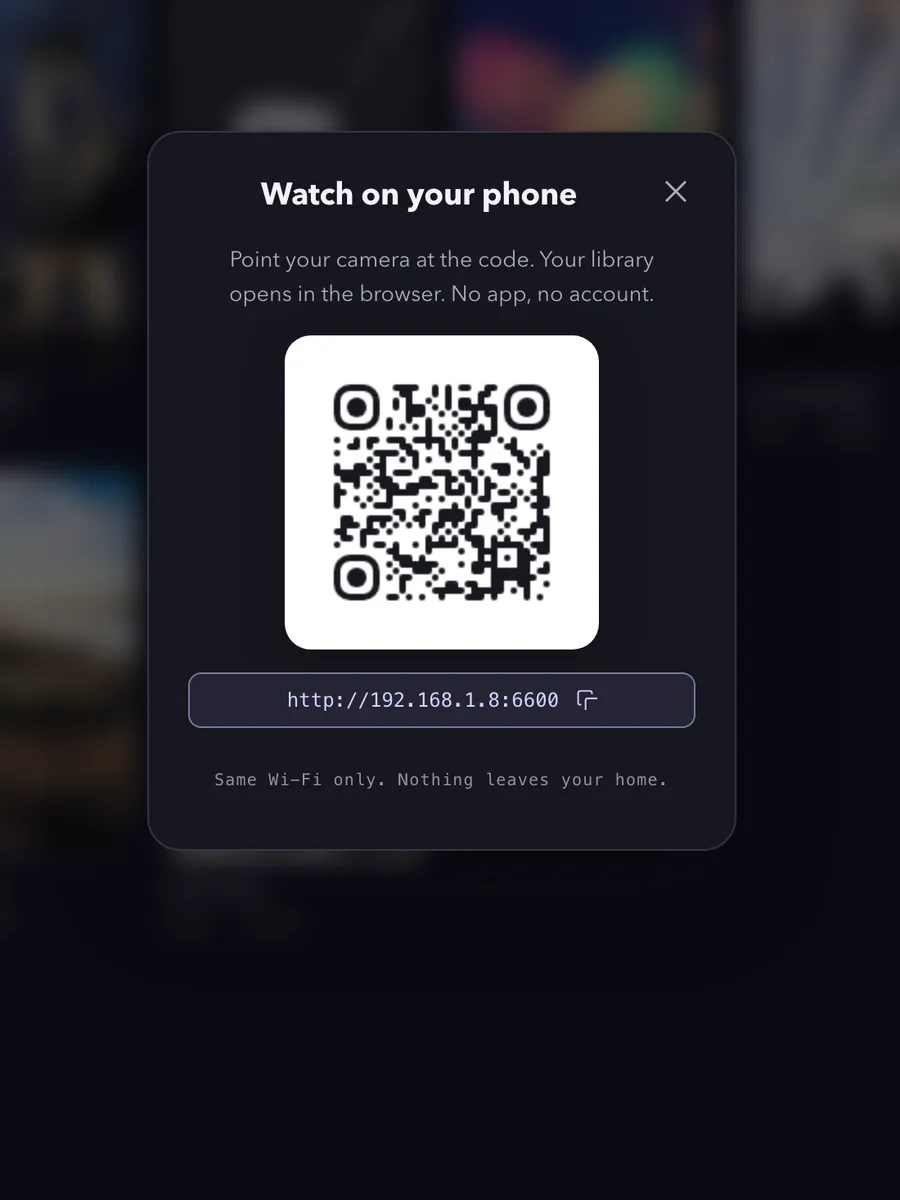
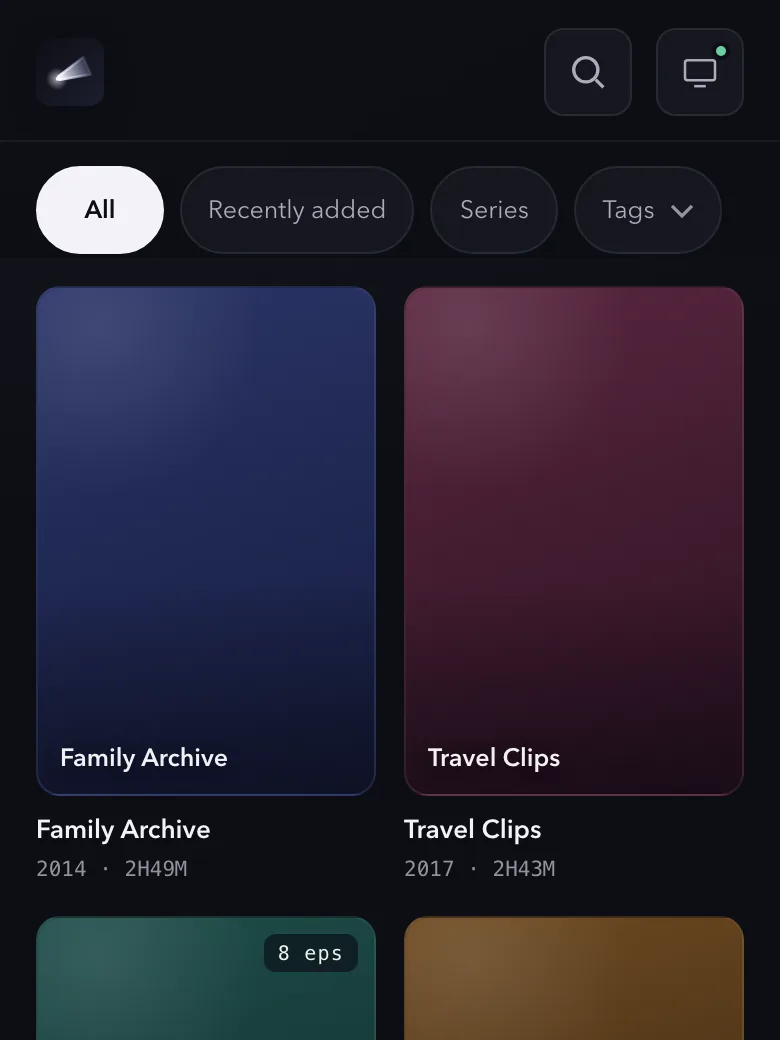
If the phone cannot open the page, first confirm it is on the intended local network and the computer is awake. Check the operating system’s local-network or firewall permission for Reelloft. Keep any permission scoped to the app and trusted local network; this setup needs no public port forwarding.
Choose a compatible receiver
Reelloft supports three receiver protocols, with different behavior in version 0.2.1. The receiver needs the relevant service enabled. A television’s general “smart TV” label does not identify which protocol it offers.
| Receiver path | What Reelloft sends | What to check |
|---|---|---|
| Chromecast / Google Cast | Source playback, or remux/transcode output when required by the current classifier | Receiver model, video and audio support, and conversion setting |
| DLNA | The source file directly | The receiver’s supported containers and codecs |
| Classic AirPlay | The source file directly | Classic video acceptance and whether pairing is required |
Google’s Cast media documentation lists support by device and format. Apple’s AirPlay instructions describe its own device-to-receiver flow; they do not certify a third-party sender.
If Reelloft reports requires pairing, check the TV’s AirPlay access settings against its manual. Reelloft does not implement AirPlay 2/HomeKit pairing or provide a pairing-code entry. If the same TV also appears as a DLNA receiver, select that named entry in the device list. Do not assume a different DLNA entry belongs to the same screen.
Start playback, then check more than the poster
On the computer, open the title and select Play on TV; an unlicensed copy adds 5-min preview to the label. Choose the intended receiver if the picker opens. On the phone, open a title and select Cast to a TV, or Cast to {device name} when a destination is already selected. The separate Play or Resume… control plays on the phone.
Selecting a screen before selecting a title chooses a destination; it does not itself start a video. Confirm on the actual TV that the intended title is playing, with audible dialogue and the expected picture shape.
For an unlicensed copy, each TV cast has a five-minute preview, including the conversion path supported for that receiver. Use that time to test pause, a seek and sound through the speakers or soundbar you normally use. Adjust volume with the TV or sound system’s controls; Reelloft’s current phone remote has no volume control. A picture on the phone does not prove the TV supports the same audio.
The computer remains the host throughout. Use Stop casting when finished. Closing the desktop window can leave Reelloft running in the background; quitting the app or sleeping the computer interrupts the source.
When a screen is missing or playback fails
| What you see | First check | What the result tells you |
|---|---|---|
| Phone cannot open the library | Current QR address, network, awake computer, app permission | Whether the library host is reachable |
| Receiver does not appear | Receiver service and local device visibility | Whether discovery works; not yet a codec test |
| Receiver appears but will not play | Protocol, source format, pairing requirement | Discovery alone has not established playback support |
| Picture plays without sound | Mute/output route, then the audio codec and receiver path | Continue with the audio guide below |
| Playback stops at five minutes | Whether this is an unlicensed cast preview | The preview limit can explain that specific stop |
For a Chromecast file that needs transcoding, check Settings → Playback → Allow video conversion. This setting is on by default, and changing it requires an activated license. In 0.2.1, turning it off blocks transcoding; it does not switch to a software-only retry. An unlicensed installation can still use the supported TV-cast preview with the default setting. The setting does not add conversion to DLNA or classic AirPlay.
If the picture is present but the soundtrack is missing, use the MKV no-sound guide. Keep the receiver protocol in your notes; a suggestion for Chromecast conversion does not apply automatically to a direct DLNA or AirPlay cast.
Keep a useful record of the test
Record the Reelloft version, computer system, receiver model, protocol, video/audio codecs and whether a soundbar is in the output path. Note whether the same file plays with sound in a local player on the computer and in the phone browser. This narrows a support request without sending the video or exposing the private library URL.
The download page lists current builds. The Plex comparison helps if you also need remote access or a broader library-management system.